Video to GIF – Convert Any Video to GIF on iPhone
Users can choose videos from their albums, Files, or record videos with the camera, and use this tool to convert the videos into GIF images for saving. Trim the clip, adjust speed and loop count, crop the size, and export — all on your device.
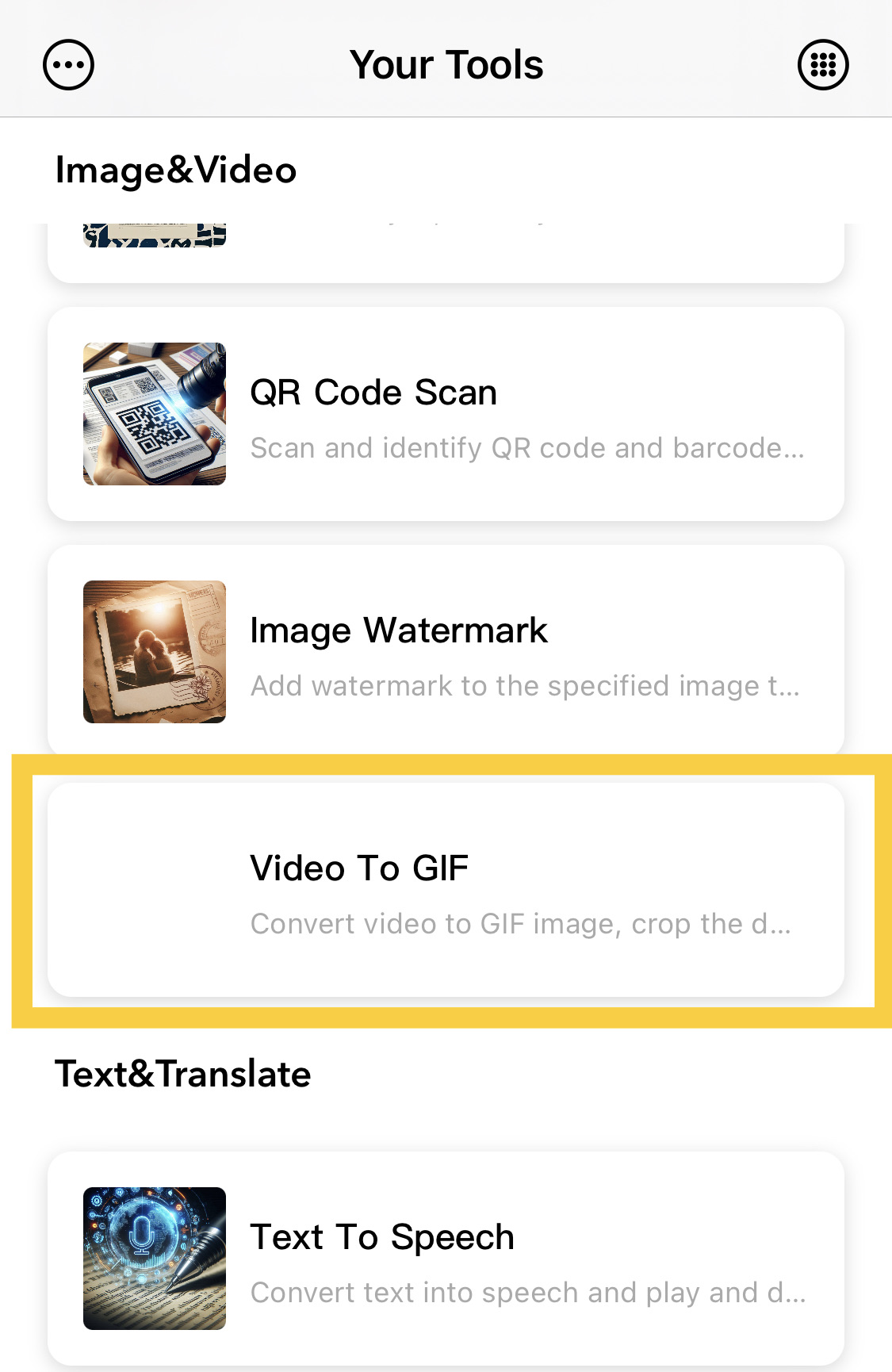
1. Select the Video to GIF Feature
The Video to GIF feature is located on the homepage function list page. You can enter it by clicking on the homepage function list or press and hold to select the image or recording option to access this feature.
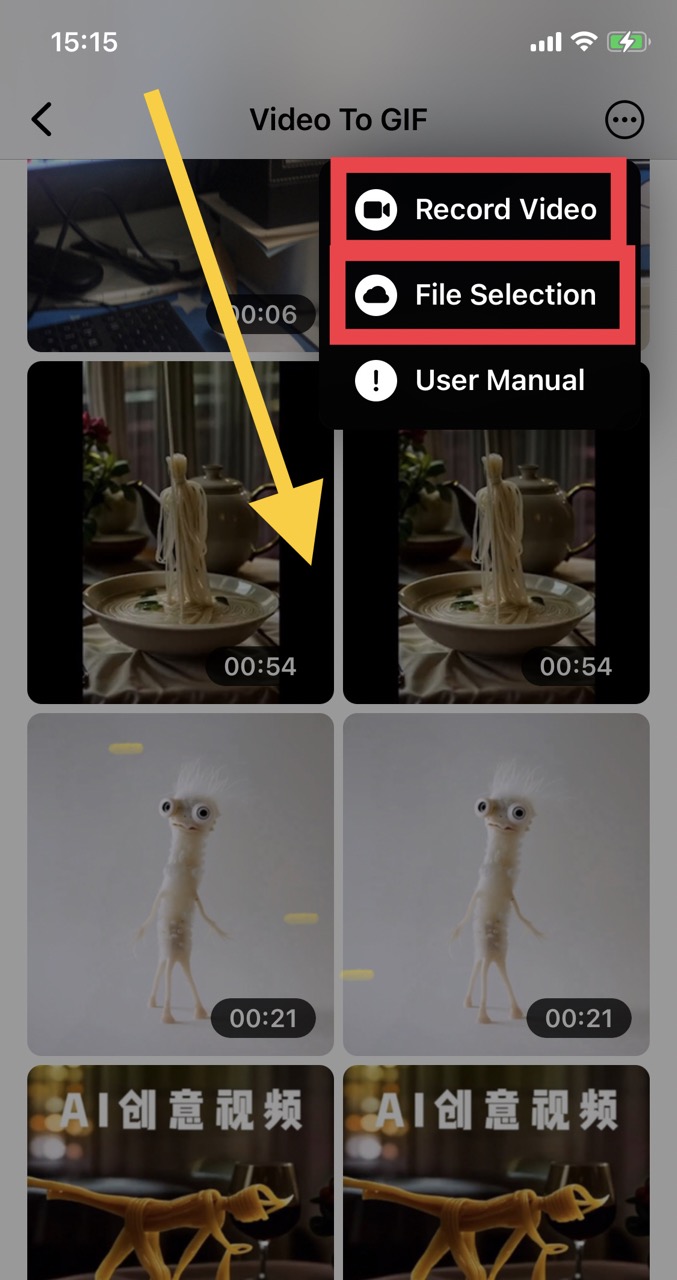
2. Choose a Video
You can select a video from the current gallery resource list, or choose a segment of video to be converted into a GIF from the camera or Files app, provided that you have the necessary permissions for some resources or the device.
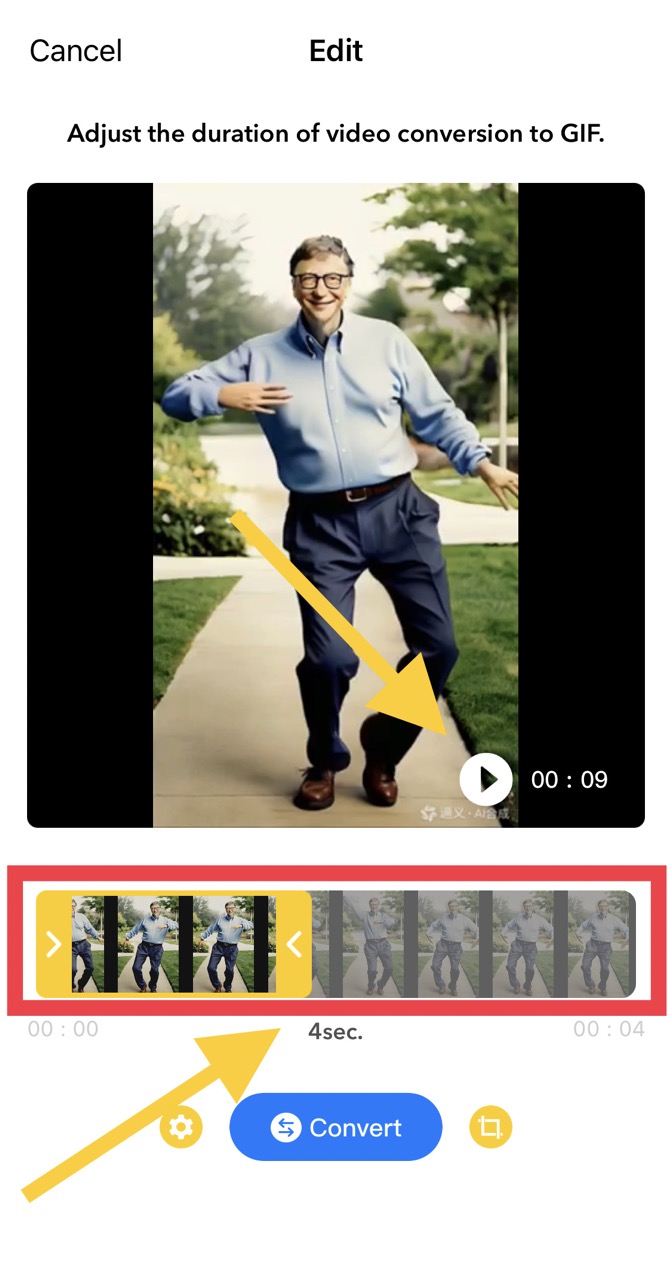
3. Edit and Crop the Video Length
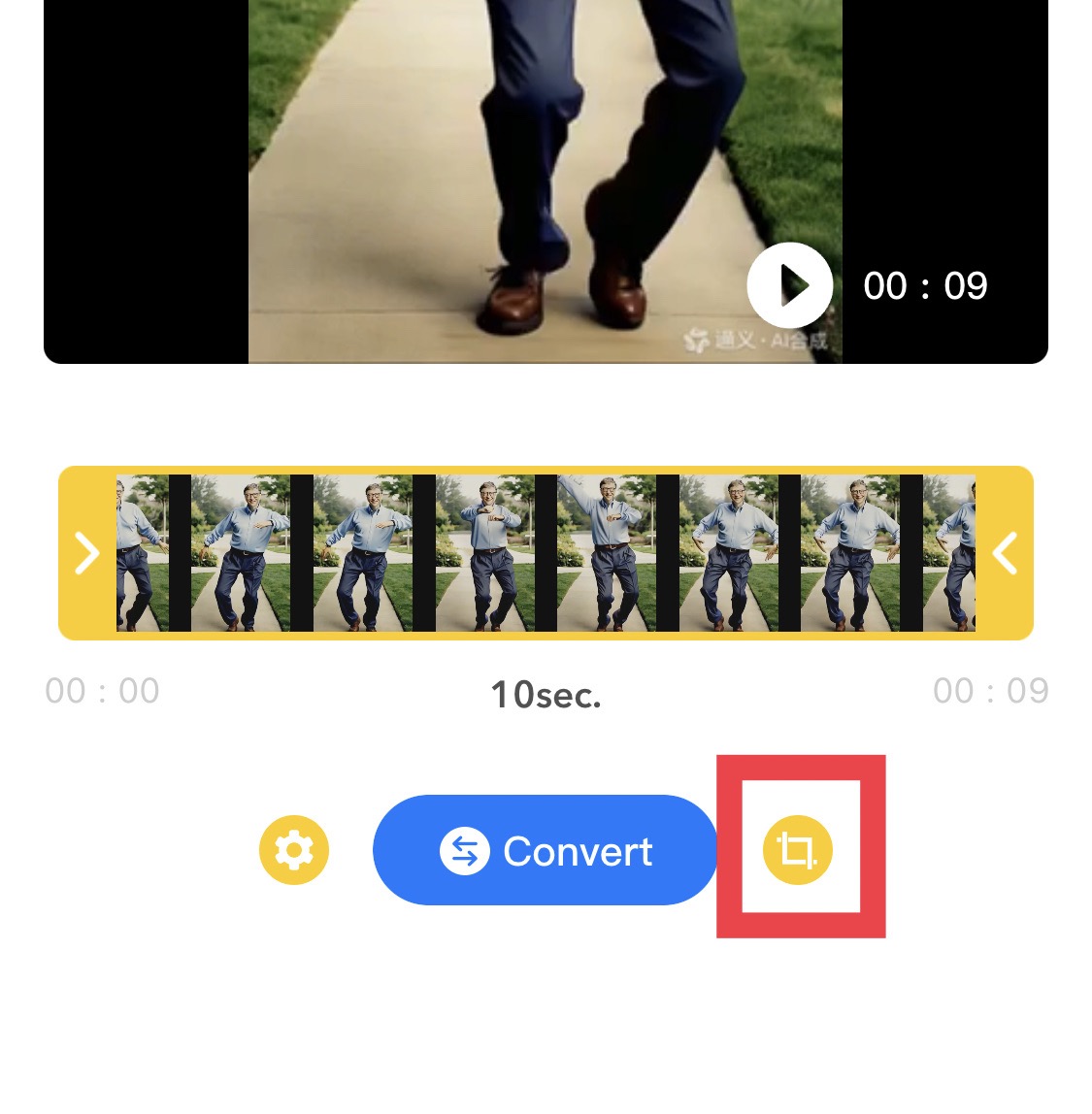
After selecting the video, you can drag the slider bar on the left and right to choose the length of the video you want to generate into a GIF. The current selected duration will be displayed below the video. Clicking the play button in the bottom right corner of the video will play the video for the selected duration.
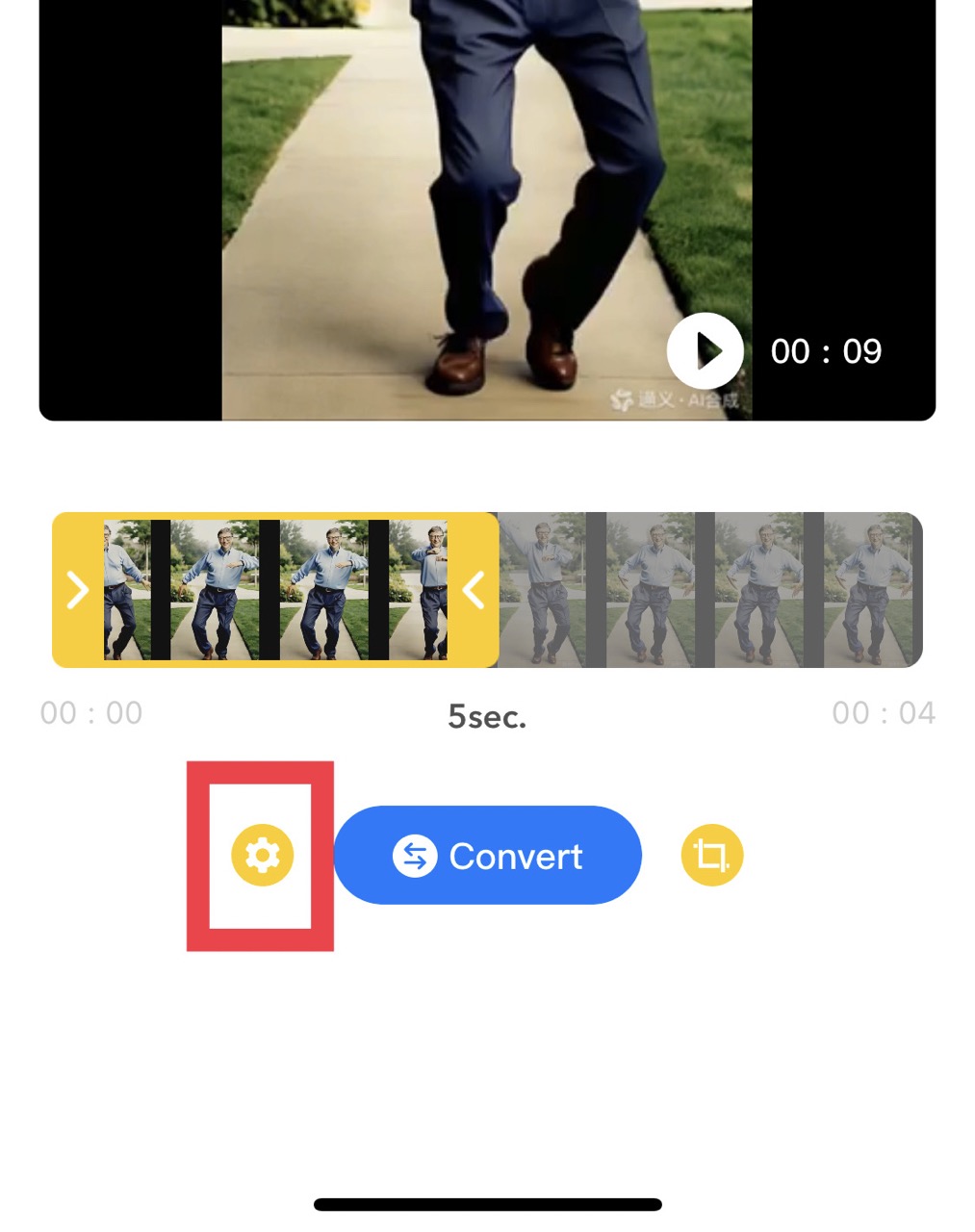
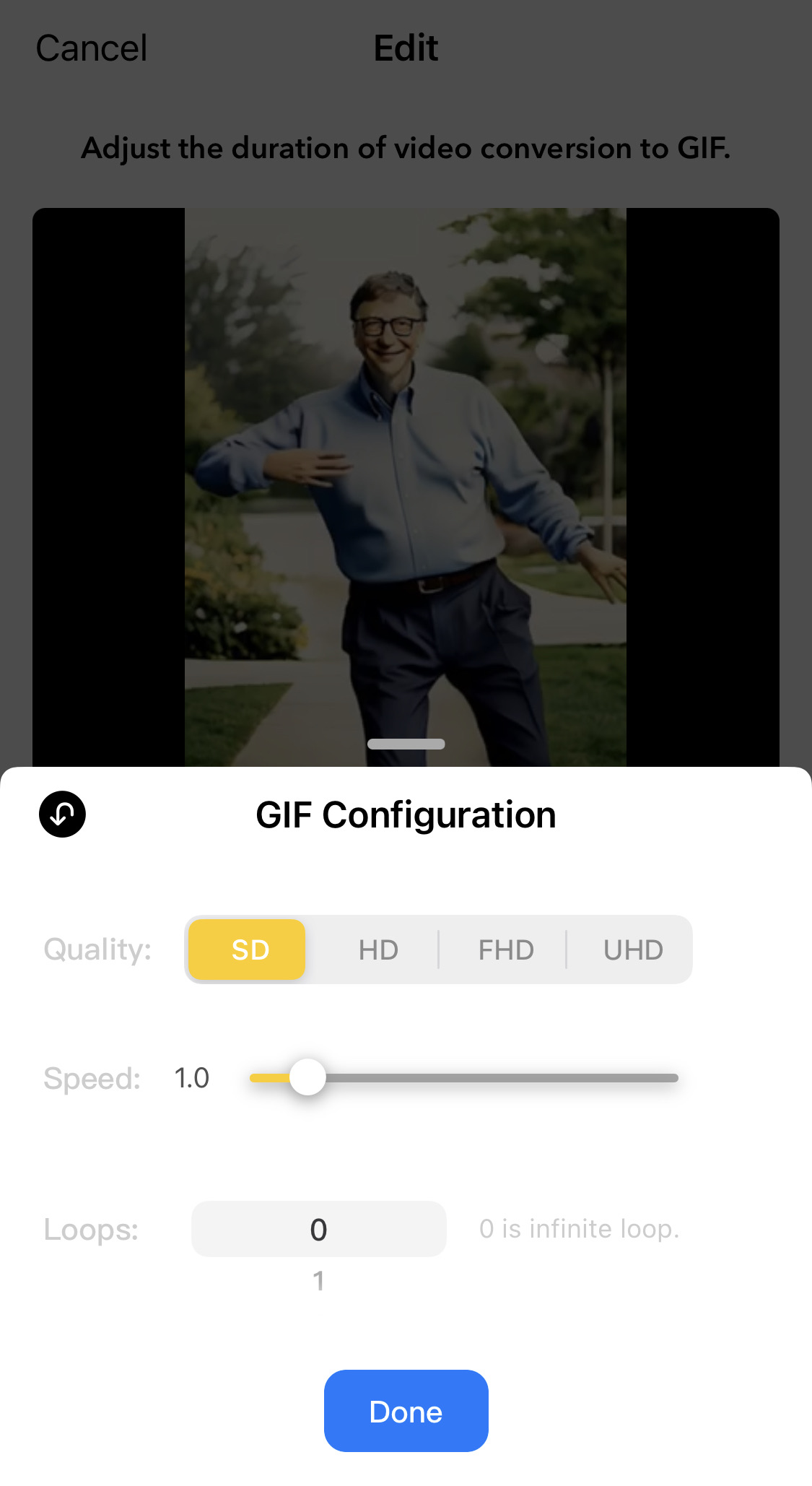
4. GIF Configuration
You can independently choose whether to adjust some parameters of the GIF image, including the clarity of the GIF, the animation speed, and the number of loops. Click the configuration button on the left, and after the configuration view appears, you can configure the GIF image that will be generated.
After completing the configuration, click Done to retain the settings for the upcoming GIF generation.
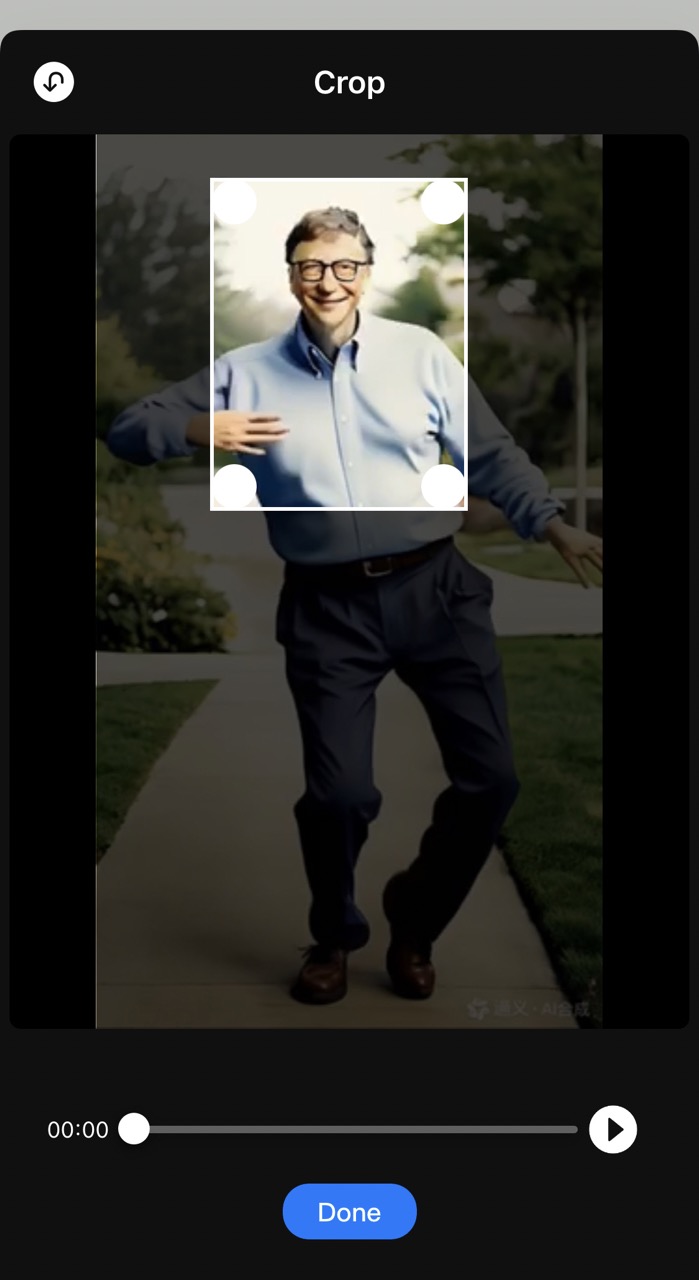
5. Video Size Cropping
You can crop the display size of the video, and the cropped size will be the animation area of the GIF. Click the button on the right to crop the video, and after cropping, you will be redirected to a new page to adjust the video view size.

6. The Final Conversion Result
After clicking the convert button, the tool will convert the video into a GIF, and the successful conversion result will appear immediately. You can save the result to the gallery resources, Files app, or share it.